
BASIS - Week 1 Foundations Architecture and Core Operations / SAP BASIS Foundations, Landscape and Navigation
Result :
SAP BASIS Foundations, Landscape and Navigation
Introduction
Purpose
This chapter explains the technical foundation that a new SAP BASIS administrator needs before performing system administration. It connects the classic R/3 client and server model with current ECC and SAP S/4HANA terminology, then shows how to log on, confirm the working context, navigate SAP GUI, use field help and maintain safe user-specific settings.
Who Should Read This Chapter
The chapter is intended for new SAP BASIS administrators, technical support analysts, functional consultants who need to navigate SAP safely, and experienced administrators who want a concise reference for user orientation and first-level diagnosis.
Learning Objectives
After completing the chapter, the reader should be able to explain the SAP three-tier model, distinguish a system from an instance and a client, verify the current SAP context, navigate with menus and transaction codes, use F1 and F4 help, maintain personal defaults and resolve common logon or navigation problems.
The following outcomes provide a practical completion check.
- Explain software-oriented and hardware-oriented client/server terminology.
- Compare one-tier, two-tier and three-tier SAP configurations.
- Describe how SAP Basis separates applications from the operating system and database platform.
- Log on with the correct system, client, user, password and language.
- Use SAP Easy Access, transaction codes, sessions, favorites, F1 help, F4 help and technical information.
- Maintain user defaults and parameter values without changing shared configuration.
- Diagnose common connection, logon, authorization and personalization errors safely.
Scope and Version Context
The historical training source describes SAP R/3 Release 4.6B. Its core concepts remain useful, but current SAP systems may use SAP GUI for Windows, SAP GUI for HTML or SAP Fiori; ABAP Central Services for message and enqueue services; SAP HANA as the database; and identity or single sign-on services outside the classic password-only model. Menu names and available functions can also vary by release, GUI theme, role and authorization. This chapter identifies those differences instead of presenting an old screen as a universal current screen.
SAP Basis and the Enterprise System
SAP Basis Responsibilities
SAP Basis is the technical runtime and administration layer used by ABAP-based SAP applications. It supplies application execution, communication, memory and process management, platform abstraction and administration tools. Business functions such as finance or logistics run above this layer, while the operating system, database, network and hardware provide the underlying platform.
In a working support model, BASIS owns or coordinates the following technical services.
| Area | What BASIS manages or coordinates | Typical partner |
| Application runtime | Instances, dispatcher, work processes, profiles and technical availability | Application and infrastructure teams |
| Database services | Connectivity, space, backup validation and performance evidence | Database team or managed provider |
| Communication | RFC, gateway, HTTP services, SAProuter and technical interfaces | Network, security and integration teams |
| Change movement | Transport domain, routes, queues and import execution | Development and functional teams |
| Operations | Jobs, spool, monitoring, logs, traces and incident evidence | Service operations and business owners |
Client and Server Principles
The word server has two meanings in SAP administration. In the software-oriented view, a server is a process or group of processes that provides a service. A work process provides an execution service, and an application server instance provides a collection of runtime services. The software component requesting that service is the client. One component may therefore be a client for one interaction and a server for another.
In the hardware-oriented view, a server is the host computer on which service-providing software runs. Keeping these meanings separate prevents confusion during incidents. For example, “the application server is unavailable” may refer to an SAP instance, the host operating system, or both; the incident owner should state which layer failed.
How a Service Request Works
A client/server interaction starts when one software component requests a defined service. The request travels through a communication channel to the component providing that service. The server processes the request and returns a response or an error. The same application server can provide dialog processing to SAP GUI while acting as a client when it requests database data, calls an RFC destination or sends an HTTP request. Client and server therefore describe the role of a component in one interaction, not a permanent label for the whole host.
Consider a user who displays a customer record. SAP GUI acts as the presentation client. The selected application server provides dialog processing, but its work process becomes a client of the database service when it reads the customer data. If the ABAP program calls a remote tax service, the same work process also becomes a client of that remote endpoint. This distinction helps the administrator follow the request across technical layers instead of treating every failure as an application-server problem.
Why the Distinction Matters During Support
When an incident states that a server is unavailable, first identify the missing service. Confirm whether the affected object is a host, an SAP instance, a database listener, a message server, an RFC destination or another software service. Record the hostname, system ID, instance name, port and timestamp where relevant. This prevents infrastructure, BASIS, database and network teams from investigating different objects under the same word.
One Tier Two Tier and Three Tier Configurations
SAP business processing uses presentation, application and database services. The tier description tells the administrator whether those services share hosts or run on separate hosts; it does not change their logical purpose.
| Configuration | Process placement | Operational meaning |
| One tier | Presentation, application and database services on one host | Simple historical or training arrangement; one host failure affects every service. |
| Two tier | Presentation is separated; application and database services share a host, or another two-tier variation is used | Fewer server layers, but application and database resources can contend on the shared host. |
| Three tier | Presentation, application and database services are separated | Supports multiple application instances, load distribution and independent scaling of major layers. |
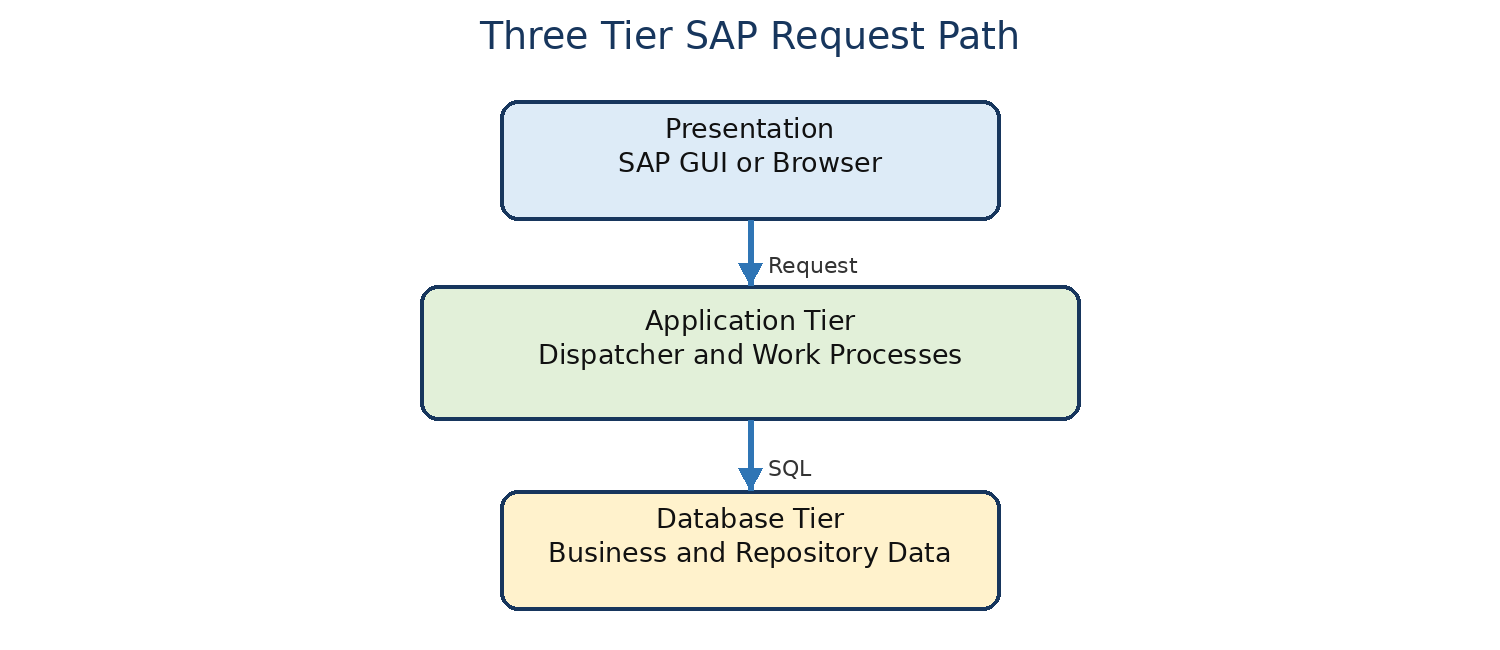
Figure 1.1 Three tier SAP request path
A user action starts in the presentation tier. The application tier executes the business logic through the dispatcher and work processes. The database tier stores business data, customizing and repository information. In a distributed system, several application instances can access the same database and register with common central services. Logon groups can distribute users across suitable instances.
Detailed Request Flow Across the Three Tiers
When the user selects a function, the presentation layer sends the action and required screen data to the connected application server. The dispatcher places the request in a queue and assigns it to an available work process of the required type. The work process loads the user context, executes ABAP logic and uses the database interface when persistent data is required. The response returns through the dispatcher, and the presentation layer renders the next screen. A later dialog step may use another free dialog work process on the same instance.
The application tier can contain several instances. Each instance has its own dispatcher, work-process pool and local buffers, but all instances in the same ABAP system use the same database and system-wide central services. If only one direct SAP Logon entry is slow, compare that instance with another instance. If every instance is slow, investigate shared dependencies such as the database, central services, network or a common external call.
Load Distribution and Specialized Instances
A logon group lets the message server direct users to an eligible application instance according to configured load and group membership. Some landscapes reserve or favor instances for dialog users, background processing, interfaces or other workloads. Specialization can protect online response time, but it also creates dependencies: if the only instance assigned to a group is unavailable, users of that group may fail even while the SAP system remains generally available.
For a load-balancing issue, record the SAP Logon group, message server, selected application server and time. Check whether all intended instances are registered and whether the affected group contains healthy servers. Do not replace a load-balanced entry with a direct productive connection as a permanent fix; a direct entry bypasses the intended distribution design.
SAP Basis Technical Stack
The SAP Basis layer provides the runtime environment between applications and the technical platform. Classic explanations describe a user interface, communication interface, programming interfaces, screen and ABAP interpreters, the ABAP Dictionary and runtime services such as scheduling and memory management. In current terminology, the exact implementation has evolved, but the separation remains important: applications should use supported SAP interfaces instead of depending directly on a specific operating system or database implementation.
| Component | Technical purpose | Administrator relevance |
| User interface | Presents applications through SAP GUI, browser or Fiori | Confirms frontend type, connection and user experience. |
| Communication interface | Supports RFC, HTTP, gateway communication, ALE and other integration paths | Helps isolate local runtime problems from remote or network problems. |
| ABAP runtime | Interprets or executes ABAP application logic and dialog processing | Links user actions to work processes, memory and database access. |
| ABAP Dictionary | Defines shared metadata for tables, fields, data elements and related objects | Supports consistent interpretation of application data and technical fields. |
| Runtime environment | Controls process scheduling, memory use and technical execution services | Provides the monitoring and administration layer used by BASIS. |
| Platform layer | Operating system, database, network and hardware | Supplies resources and persistence used by the SAP runtime. |
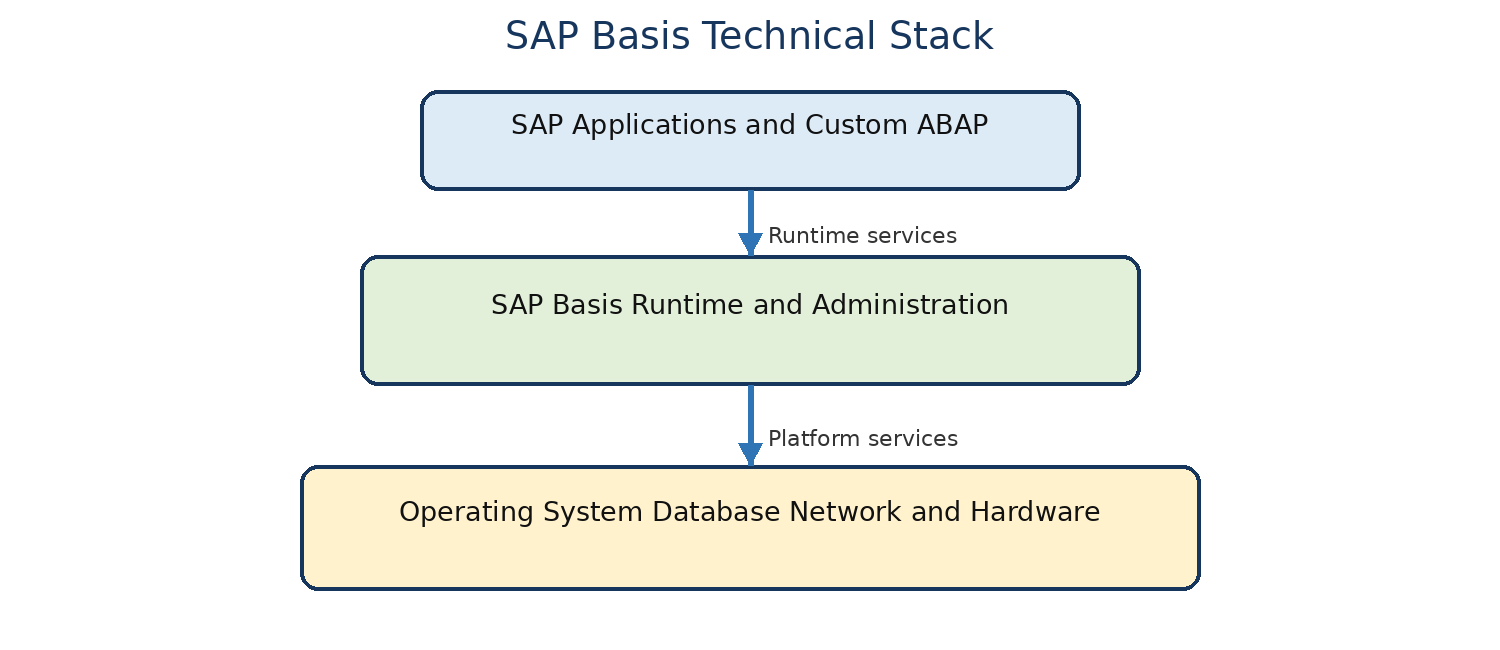
Figure 1.2 SAP Basis technical stack
The classic dynpro model combines screen processing with ABAP application logic. A screen interpreter handles the screen flow, the ABAP runtime executes program logic, and both rely on Dictionary definitions. Current applications may use other UI technologies, but the server-side ABAP runtime and repository metadata remain central in ABAP systems.
Programming and Communication Interfaces
Programming interfaces let SAP applications use runtime and platform services through stable abstractions. ABAP SQL uses Dictionary metadata and the SAP database interface so application code is not tied to one database syntax for normal data access. Communication interfaces support controlled exchange with other systems. Remote Function Call provides program-to-program calls, while Application Link Enabling uses distributed business scenarios and message exchange. Current landscapes may additionally use HTTP, OData, SOAP, REST, IDoc and event-based services.
From a BASIS perspective, interface troubleshooting starts by identifying the protocol and endpoint. An RFC problem may involve the destination, gateway, authentication or remote ABAP runtime. An HTTP problem may involve ICM, a web dispatcher, TLS trust or a remote service. ALE or IDoc failures can involve application configuration as well as technical connectivity. A successful low-level connection test does not prove that the business request completes correctly.
Scheduling and Memory Management
The runtime environment coordinates work-process scheduling and user contexts. The dispatcher does not dedicate one dialog work process to a user for the whole session. It assigns each dialog step to a suitable free process. User context information is made available when the step runs and can be rolled out or managed between steps. This multiplexing allows many users to share a controlled number of work processes.
Memory management combines process-local and shared areas whose exact implementation and parameters depend on the ABAP release and operating system. Administrators should use current SAP documentation and measured workload before changing memory parameters. A memory error can be caused by one program, one work process, an instance-wide shortage or an operating-system limit; increasing a parameter without identifying the scope can move the failure to another layer.
Current ECC and SAP S4HANA Context
SAP ECC and SAP S/4HANA still use the logical presentation, application and database separation, although deployment options differ. SAP S/4HANA uses SAP HANA as its database, and users may work through SAP GUI or SAP Fiori. Modern ABAP systems normally place the message server and standalone enqueue server in an ABAP Central Services instance. Administrators must use release-specific documentation before applying profile, installation or high-availability procedures.
Historical Business Framework Context
The training source presents the SAP Business Framework as a common infrastructure on which SAP and connected applications exchange business information. It describes ALE and certified interfaces as mechanisms for integrating separate components without forcing them onto one host. The product names and marketing structure have changed, but the architectural lesson remains useful: the SAP technical platform must provide stable runtime and communication services while business components can be distributed.
For current projects, use the supported integration technology for the product and release instead of copying a historical ALE design automatically. Verify the system of record, message direction, authentication, monitoring owner, retry behavior and duplicate-processing controls. The integration architecture belongs in the technical design before productive connectivity is opened.
Systems Instances Clients and Landscapes
SAP System and System ID
An SAP system is the complete logical installation identified by a three-character system ID. It includes one database, one or more application server instances, central services, profiles and shared technical configuration. The system ID is not the same as a client number or application server host.
Application Server Instance
An instance is a startable and monitorable group of SAP processes on a host. Each application server instance has its own dispatcher, work processes and local buffers. A multi-instance system can therefore have a problem on one server while other instances remain healthy.
SAP Client
A client is a logical business and data partition inside an ABAP system. A user logs on to one client at a time. User master records, application data and much customizing are client-dependent, while some repository and technical objects are cross-client. A client number such as 100 or 600 does not identify a separate SAP installation.
Client Dependent and Cross Client Data
Client-dependent tables include a client field, normally MANDT, that separates records by client. A normal application request reads and changes data in the logged-on client unless the application deliberately uses an approved cross-client mechanism. User masters are also client-specific in classic ABAP administration, which means a user available in client 100 may not exist or may have different roles in client 200.
Cross-client objects affect the whole SAP system or several clients. Repository objects, selected technical settings and some customizing fall into this category. The exact category must be verified for the object being changed. A change performed while logged on to one client can still have system-wide consequences when the underlying object is cross-client.
| Question before a change | Why it matters | Evidence to check |
| Is the object client dependent? | Determines whether the effect is limited to the logged-on client. | Table definition, configuration documentation or application guidance |
| Is the client open for the requested change? | Client protection can block customizing or repository changes. | SCC4 settings and approved change window |
| Will a transport be recorded? | Controls how the change reaches quality and production. | Change request, transport prompt and target route |
| Does the user exist in the target client? | User masters and roles may differ by client. | SU01 or approved identity report in the exact client |
Client Administration Caution
Client creation, deletion, copy, export, import and opening are controlled BASIS activities. Before any such action, confirm the source and target clients, logical-system impact, available space, background-job requirements, client protection and business downtime. Chapter 1 does not provide an execution runbook for those high-impact operations; it establishes the context checks that must precede them.
Development Quality and Production
A common landscape separates development, quality assurance and production. Changes are created and tested in controlled systems, then moved through transports. Direct productive changes are restricted because they bypass testing, approval and traceability. Naming conventions vary, so the administrator should verify the actual system role instead of inferring it only from the system ID.
| Term | Example | What it identifies |
| System ID | S4D | One SAP system |
| Instance | Application server instance 00 | A group of SAP runtime processes |
| Client | 100 | A logical data and user partition |
| Landscape role | Development or quality | The controlled purpose of the system |
Logging On and Confirming Context
Information Required for Logon
Before logging on, obtain the approved SAP Logon entry or URL, client number, user ID, authentication method and logon language. For load-balanced SAP GUI connections, the entry may use the system ID, message server and logon group. For a direct connection, it normally identifies an application server and instance number.
Direct and Load Balanced SAP Logon Entries
| Entry type | Typical connection data | Use | Operational caution |
| Direct application server | Application server host, instance number and system ID | Administration, controlled testing or a design that intentionally targets one instance | The user remains dependent on that instance and bypasses normal logon-group distribution. |
| Group or server selection | System ID, message server, SAProuter string where required and logon group | Normal user access with message-server selection | Requires healthy message-server connectivity and correct group membership. |
| Web or Fiori URL | HTTPS host, port and path | Browser-based applications and launchpad access | TLS, reverse proxy, web dispatcher, ICM and identity services may be involved. |
The instance number is a two-digit identifier used in several SAP service and port conventions, but a port should never be guessed from the instance number during troubleshooting. Use the approved connection definition and current system documentation. SAProuter strings can contain external routing information and should be handled as controlled technical data.
Language and Initial Password Behaviour
The logon language controls the language used for supported texts in that session. If the requested language is not installed or a translation is missing, the system may fall back for some texts. An initial password normally requires a change at first logon. Password rules, case handling, validity and single sign-on behavior depend on the system release and security configuration; do not publish a fixed universal password rule in a general tutorial.
Logon Procedure
Use this procedure for a normal SAP GUI logon. Single sign-on or identity-provider flows may replace the password step.
- 1. Open SAP Logon and select the approved system entry.
- 2. Confirm that the entry name and description match the intended development, quality or production system.
- 3. Enter the client, user ID, password and language where prompted. Do not store or share a productive password in screenshots or documents.
- 4. If the system requires an initial password change, enter the initial password once and create a compliant personal password.
- 5. After SAP Easy Access opens, verify the system, client and user before starting work.
A multiple-logon warning means the same user already has another active logon. The available choices and policy can vary. Do not terminate another session until you know whether it belongs to you and whether it contains unsaved work. The historical training system allowed six GUI sessions, but current limits are controlled by system configuration and should not be presented as a universal fixed value.
System and Client Verification
Use System → Status to confirm the active system, client, user, transaction and program details. The status bar also shows context, although the visible fields depend on GUI settings. This check is essential before a client opening, user change, job scheduling, transport import or any other sensitive action.
- 1. Choose System → Status from the current SAP GUI screen.
- 2. Verify the system ID and client against the approved request.
- 3. Verify the logged-on user and current transaction.
- 4. Record the application server when investigating an instance-specific problem.
- 5. Close the status window without changing data.
What to Record From System Status
| Field | Use during administration | Example of a support question |
| System and client | Confirms the logical target of the action | Did the failure occur in S4Q client 100 or another client? |
| User | Confirms the identity used for the action | Was the test performed with the affected user or an administrator? |
| Transaction and program | Identifies the active application context | Which transaction and ABAP program produced the message? |
| Application server | Identifies the instance serving the session | Does the problem reproduce on another instance? |
| SAP release information | Supports version-specific research | Does the procedure apply to this installed release and support package? |
SAP GUI Navigation
SAP Easy Access
SAP Easy Access is the standard SAP GUI entry screen. It provides the user menu or SAP menu, favorites and a command field. The visible tree depends on the role menu, release and authorizations. Use Extras → Settings to display technical names when that option is available.
SAP Menu and Role Based User Menu
The SAP menu organizes functions by application area. The role-based user menu is generated from the user’s assigned roles and is intended to show functions relevant to that user. Neither menu is a complete authorization report. A function may be absent because the role menu does not contain it, while direct transaction entry may still be authorized; the reverse can also occur when the menu contains a transaction but a field-level authorization check fails.
To switch between available menu views, use the corresponding SAP Easy Access buttons or menu functions provided by the release. Do not use the broad SAP menu as a reason to request unnecessary access. For support, capture the exact transaction and failed activity instead of stating only that an item is missing from the menu.
Command Field and Transaction Codes
A transaction code opens a defined application or administration function. Enter the code in the command field and press Enter. A menu path and a transaction code may reach the same screen, but access is still controlled by authorization checks.
| Command | Meaning | Example |
| /nTCODE | End the current transaction and start another | /nSU01 |
| /oTCODE | Open a new session and start a transaction | /oSM50 |
| /n | End the current transaction and return to the initial screen | /n |
| /i | Close the current session | /i |
| /o | Display the session manager | /o |
Use /n and /i carefully. They can leave the current transaction without saving. `/nex` can end the logon without normal confirmation and should not be used during ordinary productive work.
Three Ways to Select a Function
A user can select a function from the menu tree, enter a transaction code in the command field or choose an item from Favorites. The menu path teaches where the function belongs, the transaction code is efficient for known tasks, and Favorites provide personal shortcuts. All three routes open the same underlying function when they refer to the same transaction.
- 1. To learn a new function, navigate through the approved SAP menu or user menu.
- 2. After the screen opens, choose System → Status and note the transaction code.
- 3. Return to SAP Easy Access and test the transaction code in the command field.
- 4. Add the transaction to Favorites only after confirming that it is the intended supported function.
- 5. Document both the menu path and transaction code in the procedure so another user can follow either route.
Transaction Commands and Unsaved Work
The prefix /n ends the current transaction before opening another one. It can therefore discard unsaved entries after the transaction’s normal warning behavior. The prefix /o opens an additional session and preserves the current one. Use a second session when comparing configuration or monitoring an activity, but remember that both sessions operate under the same user and client unless a separate logon is used.
Commands such as /h for debugging or administrative shortcuts can change runtime behavior and may require special authorization. They are outside basic navigation and should be used only under an approved development or support procedure. Do not teach emergency commands as routine productivity shortcuts.
Menu Toolbar Status Bar and Screen Controls
The menu bar changes with the application. The standard toolbar contains common actions, while the application toolbar contains functions specific to the current screen. The title bar identifies the activity. Input fields accept values, checkboxes allow several selections, radio buttons allow one choice in a group, and tabs organize related sections. The status bar displays success, warning and error messages; read it before repeating an action.
Screen Element Reference
| Screen element | What it does | Administration habit |
| Command field | Starts a transaction or accepts a navigation command | Confirm the current transaction has no unsaved work before using /n. |
| Menu bar | Shows functions available for the current application | Record the complete path when writing a procedure. |
| Standard toolbar | Provides common actions such as Enter, Save, Back, Exit and Cancel | Use the tooltip and function key when an icon is unfamiliar. |
| Application toolbar | Provides functions designed for the current screen | Check the screen title before executing a high-impact action. |
| Title bar | Names the current screen or activity | Use it with System Status when documenting an incident. |
| Input field | Accepts or displays a value | Use F1 for meaning and F4 for supported value help. |
| Checkbox | Allows more than one option in a group | Review all selected options before execution. |
| Radio button | Allows one option from a group | Confirm the default selection matches the request. |
| Tab | Separates related field groups | Check all relevant tabs before concluding that a field is absent. |
| Status bar | Displays success, information, warning or error messages | Read and record the message immediately after the action. |
Messages and Status Indicators
A green or success message does not always prove that downstream processing finished. It confirms what the current application reports at that point. A warning may allow continuation but still require a business decision. An error blocks the requested step until its cause is corrected. Record the complete message text and, where available, the message class and number. Repeating Save or Execute without reading the status can create duplicate processing or hide the first useful error.
Navigation Commands
Use Back to return to the previous logical screen, Exit to leave the current application and Cancel to stop the current action. Their behavior depends on the transaction. If the system asks whether to save, verify the intended outcome instead of dismissing the prompt automatically.
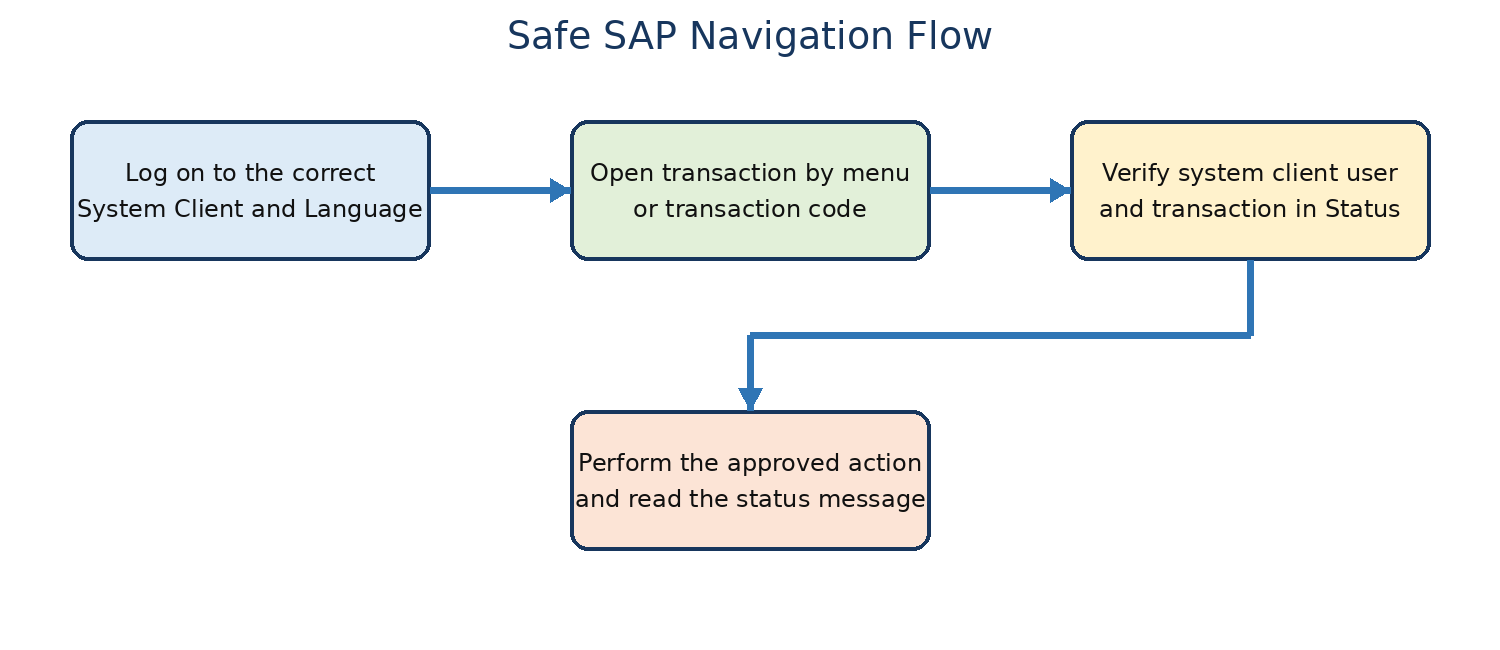
Figure 1.3 Safe SAP navigation flow
User Menu Favorites and Start Transaction
The user menu is generated from assigned roles. Favorites are personal shortcuts and do not grant authorization. Create a folder with Favorites → Insert Folder, add a transaction with Favorites → Insert Transaction, or add a web address or file only when company policy allows it. Extras → Set Start Transaction can open a selected transaction after logon; delete the value to return to the standard start screen.
Help and Technical Information
F1 Field Help
Place the cursor in a field and press F1 to display its description and application meaning. F1 help is useful when the field label is familiar but its business effect is unclear.
F1 help can include a definition, permitted use, application help link and access to Technical Information. The text may describe the data element shared by several screens, so confirm the current transaction context. If a field’s business effect remains unclear, consult the functional owner rather than inferring behavior from the technical field name alone.
F4 Value Help
Press F4 in an input field to display allowed or searchable values. Search tabs and filters vary by field. Select the correct result and copy it back to the input field. F4 help reduces typing errors but does not confirm that a value is appropriate for the business request.
Detailed F4 Search Procedure
- 1. Place the cursor in the target input field and press F4 or select the value-help icon.
- 2. Choose a suitable search tab when several search methods are available.
- 3. Enter the smallest reliable set of search criteria, such as part of a name and an organizational value.
- 4. Execute the search and review the returned list.
- 5. Select the correct row and choose Copy or press Enter to transfer the value to the field.
- 6. Verify the copied value and its description before continuing the business transaction.
If no results appear, remove accidental filters, confirm the client and organizational context and check whether the value exists and is valid. Authorization can also restrict help results. Do not create master data simply because an F4 search is empty.
Technical Information
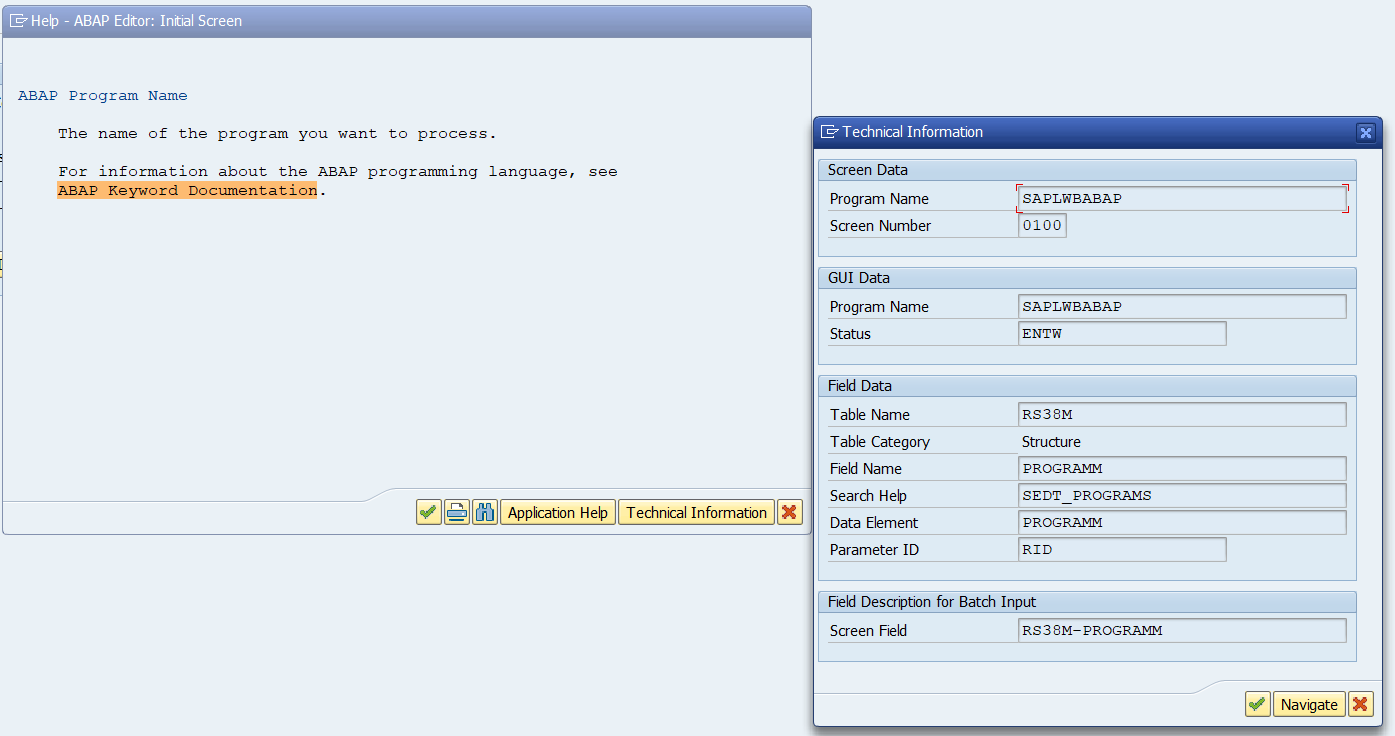
From F1 help, choose Technical Information to inspect the program, screen, table or structure, field name, data element and parameter ID when available. This evidence is useful for authorization analysis, functional troubleshooting and maintaining user defaults. Technical Information is diagnostic; it does not authorize direct database changes.
Technical Information Field Reference
| Technical value | What it identifies | Typical use |
| Program | ABAP program controlling the current screen or processing context | Runtime analysis and developer handover |
| Screen number | Dynpro screen within the program | Reproducing a screen-specific issue |
| Table or structure | Dictionary object supplying the field definition | Understanding metadata; not permission for direct table changes |
| Field name | Technical component name | Trace, authorization or functional analysis |
| Data element | Semantic Dictionary definition | Consistent field meaning and documentation |
| Parameter ID | Optional identifier used for user defaults | Maintaining a supported value in SU3 |
Application Help
Help → Application Help opens documentation related to the current application where configured. Current SAP documentation may also be provided through SAP Help Portal or embedded help. Always match the documentation to the product and release.
User Profile and Personal Settings
Own Data and Defaults
Choose System → User Profile → Own Data or use transaction SU3. The Address tab contains personal contact information. The Defaults tab can contain logon language, decimal notation, date format, time zone and default output settings. The Parameters tab stores user-specific parameter IDs and values. Save only approved personal defaults and verify their effect in a new transaction call or new logon where required.
User Profile Tabs in Detail
| Area | Typical values | Effect and caution |
| Address | Name, department, telephone and email | Used by applications and workflow where configured. Maintain accurate business information. |
| Defaults | Logon language, decimal notation, date format, time zone and output device | Changes how the user enters or sees values; some changes apply after a new session or logon. |
| Parameters | Parameter ID and personal default value | Proposes values in compatible fields. An incorrect default can send work to the wrong organizational context. |
| Roles or Profiles display | Assigned authorization information where visible | Normally maintained by security administrators, not changed through personal defaults. |
Decimal and date formats affect display and input interpretation. A value such as 1,234 can be read differently under another decimal convention, so confirm the user default before analyzing an apparent amount error. Time-zone differences can also explain why job, log or document times appear shifted between users or systems.
Parameter IDs and User Parameters
A parameter ID lets SAP propose a user-specific default for compatible fields. To find it, place the cursor in the target field, press F1, open Technical Information and check Parameter ID. Not every field has one. For example, the classic parameter ID for company code is BUK. A proposed default improves convenience; it does not replace validation or authorization.
Parameter Default Example
Assume a support analyst works mainly with company code 1000. In a transaction containing Company Code, the analyst opens F1 → Technical Information and confirms parameter ID BUK. The analyst then opens SU3 → Parameters, adds BUK with value 1000 and saves. When a compatible transaction is reopened, SAP proposes 1000. The analyst must still verify the company code before executing or saving because a parameter is a convenience setting, not an approval control.
If the transaction does not propose the value, verify that the exact field supports the parameter ID, close and reopen the transaction and confirm that application logic is not deliberately overriding the user default. If the wrong value appears, remove or correct the SU3 parameter and retest. Never maintain an undocumented parameter obtained from an unrelated field merely because the technical name looks similar.
Hold Data Set Data and Delete Data
Some classic SAP GUI screens offer Hold Data, Set Data and Delete Data. Hold Data keeps entered values for the current session and normally allows them to be overwritten. Set Data can force retained values more strongly, so Delete Data may be required before entering a different value. Availability and behavior depend on the transaction and release.
Table Control Variants
Where a table-control settings icon is available, users can change column order, width and visibility and save a personal variant. The SAP-delivered basic setting should remain available. Personal table variants affect presentation, not the underlying authorization or business data.
Table Variant Behaviour
A personal table variant is stored for the user and table-control context. It can define visible columns, order and width and may be selected as the standard layout. The basic SAP setting remains the recovery point when a personal layout hides a field or becomes confusing. Variants do not delete underlying data; they change what is displayed.
- 1. Open the transaction and identify the table-control settings icon.
- 2. Choose the basic setting first and record which columns are required for the task.
- 3. Move or resize columns and hide only fields that are not required for control, reconciliation or approval.
- 4. Save the layout under a clear personal variant name.
- 5. Reopen the transaction and verify that the intended variant loads and all required columns remain visible.
- 6. If the layout is unusable, return to the settings dialog and select the basic setting.
Frontend Personalization
SAP GUI options can change theme, font size, colors and interaction behavior. Some organizations also use screen personas, transaction variants or other controlled UI adaptations. Historical GuiXT behavior should not be assumed to be active in a current landscape. Frontend customization must not hide mandatory fields, warnings or controls needed for safe processing.
Transaction Variants and Historical GuiXT
A transaction variant can preset, hide or protect selected screen fields for a defined process. It is a controlled system object and differs from a user’s local visual preference. The historical source also describes GuiXT scripts that could change frontend presentation, include graphics or convert screen elements. Current organizations may use other personalization technologies. Before diagnosing a missing field as an SAP defect, determine whether a transaction variant, role-specific application, screen adaptation or frontend script changes the standard screen.
Personalization must preserve audit and control requirements. A hidden warning, organizational field or approval-relevant column can cause processing mistakes even if the underlying transaction still works. Test adaptations with representative roles and return to the standard layout when isolating a UI problem.
Practical Administration Procedures
Find a Transaction Code
Use this procedure when a menu path is known but the transaction code is not.
- 1. Open the required function from the SAP menu or user menu.
- 2. Choose System → Status.
- 3. Read the Transaction field. Some screens may show a program or application context instead of a simple transaction code.
- 4. Record the code together with the screen name and purpose.
- 5. Test the code in a non-production session if confirmation is required.
Create and Close Sessions
Separate sessions let a user compare screens or monitor a task without ending the current transaction.
- 1. Choose System → Create Session or enter /oTCODE to open a specific transaction in a new session.
- 2. Confirm that the new session uses the same system, client and user.
- 3. Complete or safely exit the activity in the extra session.
- 4. Choose System → End Session or enter /i in that session.
- 5. If the session limit is reached, close an unused session rather than repeatedly attempting new sessions.
Maintain User Defaults
Use this procedure to maintain personal display and logon defaults.
- 1. Open System → User Profile → Own Data or transaction SU3.
- 2. Open the Defaults tab.
- 3. Set the approved logon language, decimal notation, date format, time zone or output defaults.
- 4. Save the changes and read the status-bar message.
- 5. Start a new transaction or log on again when necessary and verify the displayed format.
Maintain a Parameter Value
Use a user parameter only after confirming the correct parameter ID and intended default.
- 1. Open a transaction containing the target field.
- 2. Place the cursor in the field and choose F1 → Technical Information.
- 3. Record the Parameter ID. If none exists, do not invent one.
- 4. Open SU3 or System → User Profile → Own Data and select Parameters.
- 5. Enter the parameter ID and approved value, then save.
- 6. Reopen the relevant transaction and confirm that the correct value is proposed.
- 7. If the value is wrong or no longer needed, remove it from SU3 and retest.
Create Favorites
Favorites provide personal navigation shortcuts without changing the user role.
- 1. From SAP Easy Access, choose Favorites → Insert Folder and enter a clear folder name.
- 2. Select the folder and choose Favorites → Insert Transaction.
- 3. Enter a valid transaction code and confirm.
- 4. Optionally move or rename the favorite to keep the list organized.
- 5. Open the favorite and confirm that it launches the intended transaction.
Create a Table Variant
Use this procedure only where the table-control settings function is available.
- 1. Open the table and select its settings icon.
- 2. Adjust column order, width and visibility without hiding fields required for control or approval.
- 3. Choose the option to maintain or save a variant.
- 4. Enter a personal variant name and set it as the standard only if desired.
- 5. Reopen the transaction and verify that the table uses the expected layout.
Security and Production Controls
Logon Security
Use only named accounts approved for the system and client. Never place passwords, single sign-on tokens or authentication evidence in screenshots. Lockouts, password-reset procedures and multiple-logon rules are security controls; bypassing them without approval can create audit and licensing issues.
Client and Authorization Boundaries
A successful logon proves only that the user can enter the client. Each transaction and action can perform further authorization checks. A transaction visible in a menu may still fail, and a transaction started by code may still be blocked. Analyze the failed check with approved security tools rather than adding broad authorization.
Safe Navigation in Production
Before saving or executing a sensitive action, confirm the system, client, user, transaction and ticket or approval. Read the status message after every save. Do not use unfamiliar commands, mass selection, direct table maintenance or emergency functions simply because the screen is accessible.
Common Errors and Detailed Solutions
Logon and Connection Errors
The following entries separate a visible symptom from its possible causes. Complete the diagnosis before applying a correction.
| Error or symptom | Likely causes | Diagnosis and corrective solution | Validation |
| SAP Logon entry cannot connect | Wrong host or message server, port or SAProuter problem, instance down, DNS or network failure | Confirm the approved entry. Test network reachability through the responsible team, check instance and message-server availability, and review SAP GUI or dispatcher connection evidence. Correct the entry or restore the failed dependency. | The approved entry reaches the SAP logon screen and a test user logs on without bypassing security. |
| Name or password is incorrect | Typing error, wrong client, expired or initial password, locked user, authentication-provider issue | Confirm client and user ID, check keyboard state, then use the approved user administration or identity process. Do not repeatedly guess the password. | The named user logs on to the intended client and no new lockout occurs. |
| User is locked | Repeated failed logons, administrator lock, validity period or security action | An authorized administrator checks the user status and lock reason in the correct client. Remove only a verified accidental lock under policy; investigate repeated failures. | User status is valid, the logon succeeds once, and the lock does not recur. |
| Client does not exist or logon not possible | Incorrect client, client locked for logon, system copy or client administration state | Verify the requested client and maintenance window. Check client settings and system notices with an authorized administrator. Do not open a client or change protection settings merely to permit logon. | The user logs on to the approved client or receives the correct controlled restriction. |
| Multiple logon warning | Same user active elsewhere or disconnected session still recorded | Check whether the other session belongs to the same person and whether work is active. Continue or terminate only under policy. Shared IDs require separate security review. | Only intended sessions remain and no unsaved work is lost. |
Navigation and Authorization Errors
| Error or symptom | Likely causes | Diagnosis and corrective solution | Validation |
| Transaction code does not exist | Typing error, obsolete code, product or release difference | Check the code in System → Status from the menu path or verify it in current official documentation. Use the supported successor transaction or app. | The supported function opens and matches the intended task. |
| Not authorized for transaction or activity | Missing role authorization, organizational restriction, expired assignment | Capture the exact message, transaction, system, client and time. Use SU53 immediately after the failure or an approved trace with the security team. Request only the required access. | The approved user performs the exact action without a broader unintended authorization. |
| Command field is hidden | SAP GUI layout or setting, screen mode, frontend variation | Use the toolbar control to display the command field or navigate through the menu. Check GUI options if the state persists. | The command field is visible and accepts a harmless test transaction. |
| Session limit reached | Too many open GUI sessions or configured limit | List the user’s sessions and close completed sessions normally. Do not assume the historical limit of six applies to the current system. | A new session opens after an unused session is closed, with no active work terminated. |
| Back or Exit prompts to save | Unsaved changes exist or the transaction controls navigation | Review what changed. Save only if approved; otherwise cancel or discard intentionally. Do not use /nex to suppress the decision. | The transaction ends in the intended state and no unintended document or configuration change exists. |
Help and Personalization Errors
| Error or symptom | Likely causes | Diagnosis and corrective solution | Validation |
| F4 help returns no values | Restrictive search criteria, wrong client or organizational value, missing data or authorization | Clear unnecessary filters, confirm field context and client, then retry with a valid search value. If data should exist, involve the application or security owner. | Expected permitted values appear and the selected value copies to the field. |
| F1 help or technical information is unavailable | Frontend issue, incomplete help configuration, authorization or UI technology difference | Confirm whether the application supports classic F1 help, test another field and check current documentation or frontend configuration. | Field documentation or an approved alternative source provides the correct technical identity. |
| User parameter does not default | Wrong parameter ID, unsupported field, value invalid for the client, transaction overrides default | Recheck F1 → Technical Information, verify SU3 entry and reopen the transaction. Remove incorrect values. | The correct value is proposed only in compatible fields. |
| Wrong date or decimal format | Incorrect SU3 defaults or application-specific formatting | Review SU3 Defaults, save the intended format and start a new transaction or session. Check application formatting if the value remains different. | Dates and numbers display in the selected format without changing stored business values. |
| Favorite opens the wrong function | Incorrect transaction code, renamed shortcut, obsolete function | Compare the favorite code with the supported transaction. Correct or delete the shortcut; do not infer authorization from its presence. | The favorite opens the intended supported screen. |
| Table layout appears broken or columns are missing | Personal table variant, narrow frontend window, changed SAP layout | Switch to the basic setting or another known variant, restore required columns and save a corrected personal variant. | Required columns are visible and the layout remains correct after reopening. |
Detailed Error Resolution Procedures
The tables above support quick lookup. The following procedures explain how to investigate the most common symptoms without destroying evidence or weakening security controls.
SAP GUI Cannot Reach the Selected System
Symptom: SAP GUI shows a connection error before the client, user and password screen appears, or the connection attempt times out.
Possible causes: The SAP Logon entry can contain an incorrect application server, message server, system ID, instance number, logon group or SAProuter route. The target instance or message server may be stopped. DNS, firewall, VPN, route, port or local frontend configuration can also block the connection.
Detailed diagnosis: First compare the SAP Logon entry with the approved connection record; do not edit it from memory. Determine whether the entry is direct or load balanced. Ask whether other users on the same network can connect and whether the same user can reach another SAP system. For a direct entry, check the target application instance. For a group entry, check message-server reachability, group configuration and instance registration. Correlate the exact time with SAP start service, dispatcher, message-server, SAProuter, firewall and network evidence as appropriate.
Corrective solution: Correct a confirmed entry error, restore the stopped SAP service through the approved start procedure, or have the owning network or security team restore the blocked path. If one application instance is down but a load-balanced group contains other healthy instances, validate group behavior instead of distributing an unofficial direct connection.
Production precaution: Do not disable firewall controls, bypass SAProuter or publish internal host and port data as a shortcut. Do not restart the full SAP system when evidence identifies only one frontend or network path.
Validation: The approved entry reaches the expected logon screen, the user logs on to the correct client and System → Status shows an approved application server or logon-group result.
Name or Password Is Incorrect
Symptom: Authentication fails even though the SAP connection itself reaches the logon screen.
Possible causes: The client or user ID is wrong, keyboard state changes the entered password, the password expired, an initial password requires change, the user is locked or the identity provider rejects the authentication. In a multi-client system, the same user name can have a different status in each client.
Detailed diagnosis: Confirm the client and user ID from the access request. Check Caps Lock and keyboard layout without asking the user to disclose the password. An authorized administrator checks the user master in the exact client for lock status, validity dates, user type and authentication method. For single sign-on, review the identity, certificate or ticket flow rather than resetting an SAP password automatically.
Corrective solution: Use the approved password-reset or identity-recovery process. Remove only an accidental administrative or failed-logon lock after confirming the user’s identity and the reason. Correct validity or user-type settings only when the access owner approves the change.
Production precaution: Repeated password guesses can lock the account and obscure the original failure. Never request a user’s password by email, chat or screenshot, and never test with another person’s named account.
Validation: The named user logs on once to the intended client using the approved authentication method, the user master remains unlocked and no security exception was introduced.
Client Is Unavailable for Logon
Symptom: The system rejects the requested client, reports that logon is not possible or the client is absent from the expected environment.
Possible causes: The user entered the wrong client, the client does not exist, logon is restricted during maintenance, the client is protected after a copy or refresh, or the requested client belongs to another system. A user master may also be missing in that client.
Detailed diagnosis: Confirm the system ID and client from the approved request. Review maintenance communications and the client’s intended role. An authorized BASIS administrator checks client configuration and protection without changing it. Confirm whether the issue affects all users or one user. If the client was recently copied, verify completion of post-copy activities and user-master handling.
Corrective solution: Direct the user to the correct existing client, create or unlock the named user through the approved access process, or wait for the authorized maintenance restriction to end. Change client protection only under a separate approved activity with a defined closing time and validation.
Production precaution: Never open a production client merely to overcome a logon error. Client protection controls changes as well as access and can affect the whole operating model.
Validation: The approved users can log on to the intended client, unauthorized users remain restricted and the client’s protection settings match the approved state.
Transaction Is Not Authorized
Symptom: The user can log on but receives an authorization message when starting a transaction or executing an activity within it.
Possible causes: The role does not contain the transaction, the authorization object lacks an activity or organizational value, the role assignment is expired, a user comparison is incomplete or the application performs an additional authorization check.
Detailed diagnosis: Record the system, client, user, transaction, exact action and message time. Run SU53 immediately after the failure so the failed checks are not replaced by later activity. When SU53 is insufficient, the security team can use an approved authorization trace for the specific user and short reproduction window. Compare the result with the approved job function; do not use another broad-access user as the design baseline.
Corrective solution: Update the authorized business role or organizational values through the access-governance process, generate the role where required and complete the user comparison. If the requested activity is outside the user’s role, reject or reroute the request instead of expanding access.
Production precaution: Avoid SAP_ALL, broad wildcard values and permanent emergency access as a quick fix. These actions can create segregation-of-duties and audit risks.
Validation: The user performs the exact approved action, unrelated restricted actions remain blocked and the access change is linked to the approved request.
Transaction Code Is Unknown or Obsolete
Symptom: SAP reports that the transaction does not exist, or the code opens a different or unsupported function after an upgrade.
Possible causes: The code is mistyped, belongs to another product or add-on, was replaced, is not available in the installed release, or the original process moved to a Fiori app or successor transaction.
Detailed diagnosis: Reopen the function through the current menu if available and use System → Status to identify the active transaction. Search current official product documentation by function, not only by the old code. Confirm installed components and release. If the code came from an old training document, treat it as a historical reference until verified.
Corrective solution: Update the procedure and favorite to the supported transaction or app. If a required add-on or business function is absent, route the requirement to architecture and application owners rather than attempting an unplanned activation.
Production precaution: Do not create a custom transaction alias solely to preserve an obsolete training code without design review and security assessment.
Validation: The supported application opens, provides the intended function and is documented with the correct current navigation path.
F4 Help Returns No Values
Symptom: Value help opens but shows no rows, or the expected value is missing.
Possible causes: Search filters are too restrictive, the value does not exist in the logged-on client, organizational criteria exclude it, the value is blocked or expired, authorization restricts the result, or the wrong search tab is selected.
Detailed diagnosis: Clear unnecessary filters and search using one reliable attribute. Confirm system, client and organizational context. Ask the functional owner whether the master or configuration value exists and is valid. If another authorized user can see it, compare roles and authorization evidence rather than copying that user’s access.
Corrective solution: Use valid search criteria, correct the master or configuration data through its owning process, or provide the approved authorization. Select the result and verify both its key and description.
Production precaution: Do not create duplicate master data or loosen authorization only to make an F4 result appear.
Validation: The expected permitted value appears for the intended user and client, copies into the field and produces the correct downstream result.
User Parameter Does Not Default
Symptom: A value stored in SU3 does not appear in a transaction, or an unexpected value appears.
Possible causes: The parameter ID is wrong, the field has no parameter ID, the transaction does not read that parameter, application logic overrides it, the stored value is invalid in the client or the user is testing an already-open screen.
Detailed diagnosis: From the exact field, open F1 → Technical Information and verify the Parameter ID. Compare it with SU3 → Parameters. Close and reopen the transaction. Test whether the value is valid and whether the same field in another compatible transaction reads it. Check for transaction variants or application defaults.
Corrective solution: Correct or delete the SU3 entry. If the application intentionally ignores the parameter, document that limitation and use the supported application setting instead.
Production precaution: A parameter can propose an organizational value silently. Users must verify it before saving documents or executing reports.
Validation: Compatible transactions propose the approved value, incompatible fields remain unaffected and the user can override the proposal where the process allows it.
Date Decimal or Time Display Is Wrong
Symptom: Dates, amounts or timestamps appear in an unfamiliar format, or a user believes a value changed when only its presentation changed.
Possible causes: SU3 defaults differ, the application applies a specific format, frontend locale affects input, the personal time zone differs from the system time zone or a report formats output independently.
Detailed diagnosis: Check SU3 → Defaults for date format, decimal notation and time zone. Compare the same stored object with a user using the expected settings. Distinguish the database value from the displayed representation. For timestamps, record system time, user time zone and application conversion behavior.
Corrective solution: Maintain the approved user defaults, start a new session where required and correct application-specific formatting through its owning configuration if SU3 is not used.
Production precaution: Do not change stored amounts, dates or job schedules until the team proves that the underlying value is wrong rather than only displayed differently.
Validation: The value displays and is interpreted correctly for the user, while the underlying business data remains unchanged.
Personal Table Layout Hides Required Columns
Symptom: A user cannot find a column that colleagues can see, column order is confusing or a table appears incomplete.
Possible causes: A personal variant hides or moves the column, another variant is active, the window is narrow, a role-specific screen adaptation changes the layout or an upgrade changed available fields.
Detailed diagnosis: Confirm the transaction, screen and active layout. Switch to the basic table setting and compare. Check whether the column is available but off-screen. Ask whether a transaction variant or UI adaptation applies to the user or role.
Corrective solution: Restore the basic layout, add the required column and save a corrected personal variant. Change a shared screen adaptation only through controlled testing and approval.
Production precaution: Do not hide approval, status, amount or organizational columns needed to prevent business mistakes.
Validation: The required columns appear after reopening the transaction and the corrected layout does not remove other control-relevant information.
Diagnostic Checklist
Use this sequence before escalating a logon or navigation incident.
- 1. Record the exact system entry, system ID if known, client, user, time and message text.
- 2. Decide whether the failure occurs before connection, during authentication, after logon or only in one transaction.
- 3. Check whether one user, one client, one application server or all users are affected.
- 4. Preserve screenshots or logs after masking credentials and confidential data.
- 5. Use System → Status, SU53 or other approved evidence appropriate to the failure.
- 6. Correct the owning layer only after the evidence identifies it.
- 7. Repeat the original action and record the result.
Practical Validation Scenario
New BASIS User Orientation
A new BASIS analyst receives access to a quality system. The analyst selects the approved SAP Logon entry, logs on to the assigned client, opens System → Status and confirms the system, client and user. The analyst displays technical names in SAP Easy Access, opens SM04 through the approved menu or transaction code, uses F1 and Technical Information on a harmless field, creates a personal favorite and maintains a date format in SU3. No shared configuration or business data is changed.
The controlled validation procedure is as follows.
- 1. Confirm the approved system entry and assigned client.
- 2. Log on and verify system, client and user with System → Status.
- 3. Open a permitted display transaction and record its transaction code.
- 4. Use F1 and F4 help on non-sensitive display fields.
- 5. Create one personal favorite and verify it.
- 6. Review SU3 defaults, change only an approved personal display setting and validate it.
- 7. Log off normally and confirm that no unsaved activity remains.
Expected Results
The analyst can explain the system, instance and client distinction; identify the current context; navigate by menu and transaction code; use help functions; and maintain personal settings. Any authorization failure is documented and routed to the security team without requesting unrestricted access.
Summary
Key Takeaways
SAP business processing separates presentation, application and database services even when deployment places some services on shared hosts. SAP Basis supplies the runtime and administration layer between business applications and the technical platform. Safe administration begins by confirming the system, client, user and transaction, then using supported navigation and evidence-based troubleshooting.
- A software server provides a service; a hardware server is the host running service software.
- A system, instance and client are different technical scopes.
- Favorites and menu visibility do not grant authorization.
- F1 explains a field; F4 helps select an allowed value; Technical Information exposes technical identifiers.
- SU3 settings are user-specific and should be tested after saving.
- Error recovery must correct the identified layer and include a validation step.
Content Coverage Validation
This chapter covers the source topics for Basis System and System Environment and Navigation: SAP application infrastructure, client/server principles, one-tier through three-tier arrangements, SAP Basis services, runtime interfaces, logon fields and client behavior, SAP GUI screen elements, SAP Easy Access, transaction selection, role menus, F1 and F4 help, application help, sessions, user profile defaults, parameter IDs, favorites, table variants and frontend personalization. It also adds current ECC and SAP S/4HANA context, security controls, detailed procedures and independent error-resolution guidance.